Events
An event is the container for a specific festival or sales day. Products, prices, stations, orders, and reports always relate to an event. Before you create products or accept orders, you therefore need to create an event and activate it first.
You can find this section via Events in the sidebar.
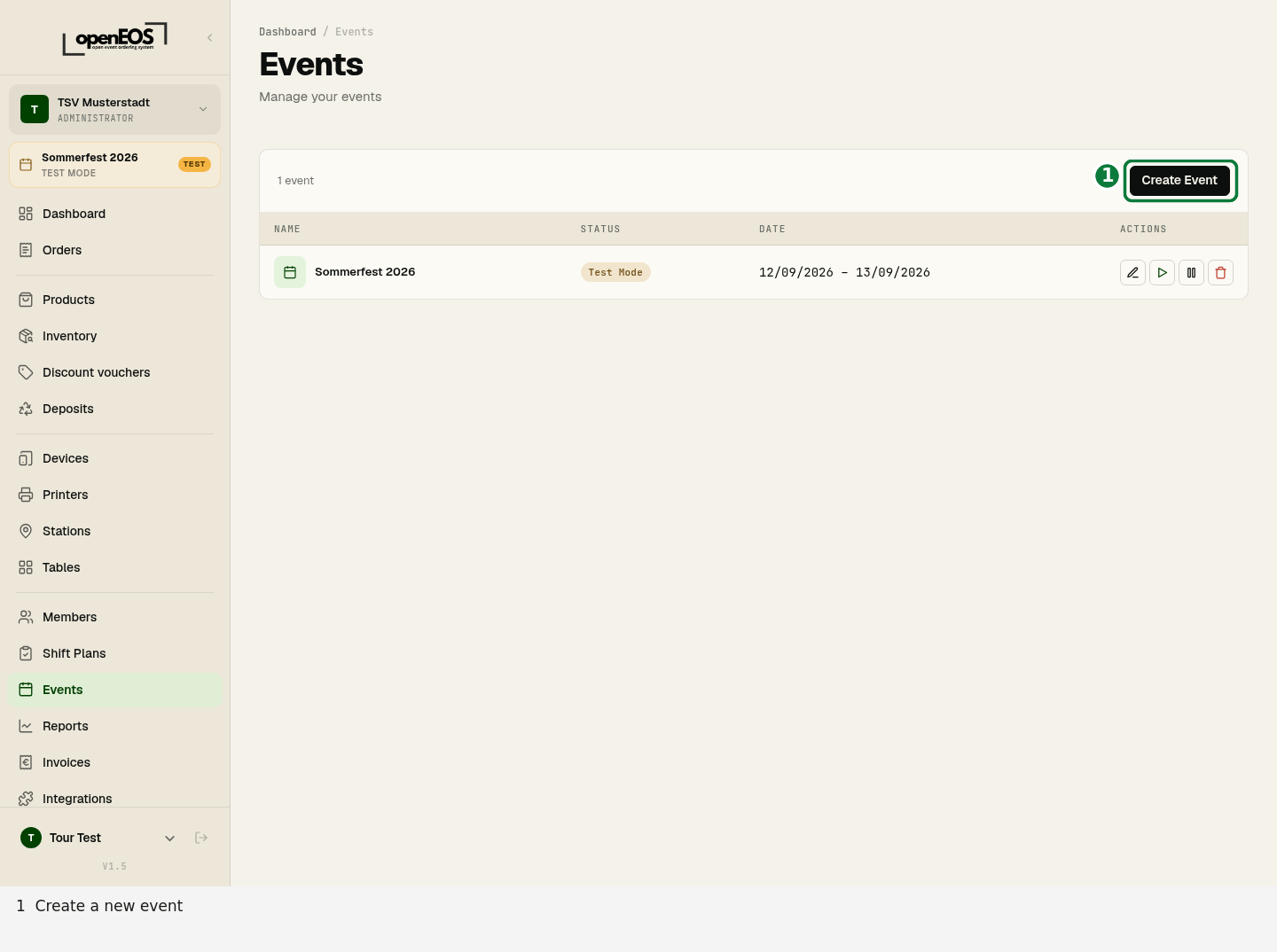
Creating an event
- Click Create Event.
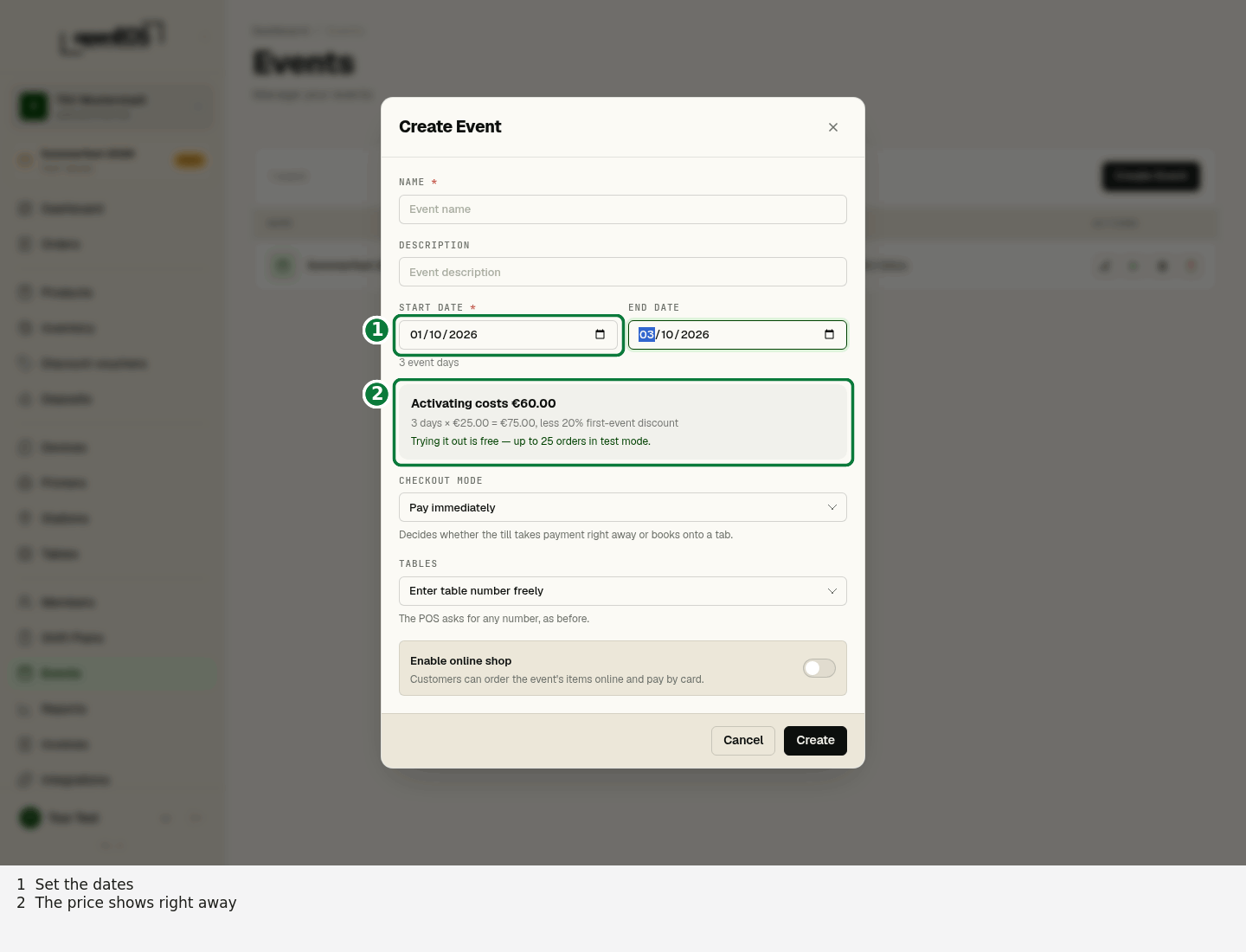
- Fill in the form:
- Name (required) — e.g. "Sommerfest 2026"
- Description — optional additional text
- Start date and End date — without an end date the event lasts one day
- Checkout mode — pay immediately or run a tab, see below
- Tables — whether and how the tills ask for a table, see below
- Enable online shop — lets guests order items from this event online, with opening hours and an optional service fee
- Click Create.
You can change everything later via Edit. If you change the checkout mode or tables while the event is running, the tills pick up the new setting by themselves.
Checkout mode
The checkout mode decides when guests pay at the till:
| Checkout mode | For | At the till |
|---|---|---|
| Pay immediately | Bars, food stalls, drinks counters — the guest pays when ordering | Only Check out: order and payment in one go |
| Run a tab | Table service — guests pay at the end | Send passes rounds to the kitchen and bar, Check out settles everything open at the table at the end |
The details are under Till.
Tables
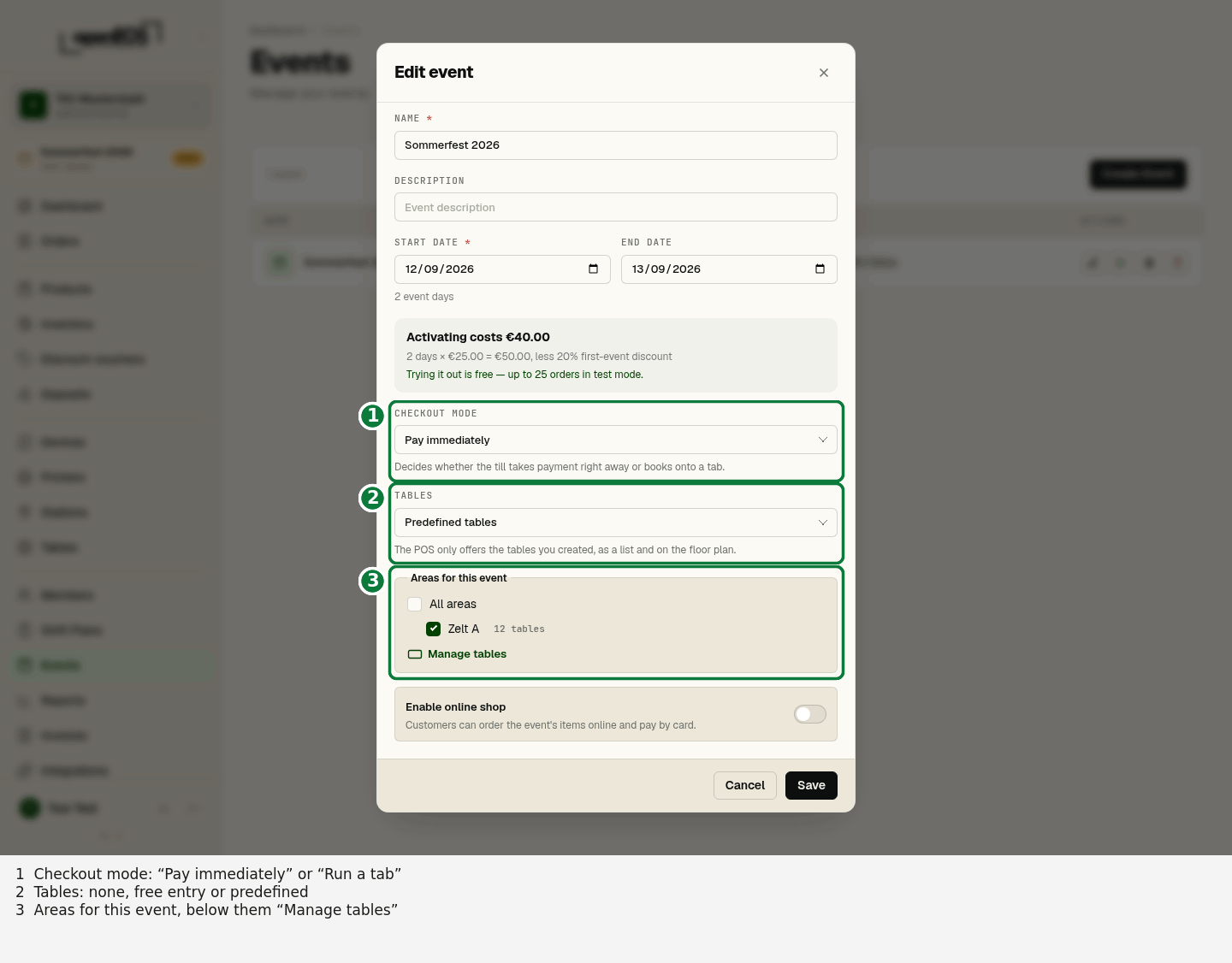
Under Tables you decide whether the tills ask for a table:
| Setting | At the till |
|---|---|
| No tables (counter service) | All tills book at the counter without asking for a table. |
| Enter table number freely | The till asks for any number. No tables need to exist. This is the default. |
| Predefined tables | The till only offers the tables you created — by number, as a list and on the floor plan. |
With Predefined tables you also choose the Areas for this event — only Tent A, say, if the beer garden stays closed this year. All areas also includes areas created later. You maintain the areas and tables themselves under Tables — the Manage tables link in the dialog takes you there. If no tables exist yet, the dialog points this out; the tills can then only book without a table.
Whether a till asks for a table at all also depends on the device: tills in Counter service mode always book at the counter, whatever is set here. See Devices.
What an event costs
OpenEOS is billed per event day — not per order, and not as a subscription. The amount appears right under the date range as you create it:
Activating costs €60.00 3 days × €25.00 = €75.00, less 20% first-event discount Trying it out is free — up to 25 orders in test mode.
Change the dates and the amount follows.
What counts as an event day
An event day runs from 6:00 to 6:00 (your organization's local time), not from midnight to midnight. A night that ends before 6 in the morning still belongs to the day before:
| Period | Days billed |
|---|---|
| Sat 20:00 – Sun 02:00 | 1 |
| Sat 14:00 – Sat 23:00 | 1 |
| Fri 18:00 – Sat 06:00 | 1 — stopping at exactly 6:00 does not start a new day |
| Fri 17:00 – Sun 18:00 | 3 |
The form only asks for dates. If your event ends during the night before 6:00, pick the day the evening starts as the end date — for a party from Saturday 20:00 to Sunday 02:00 that is Saturday to Saturday. The online shop's opening hours can still run into the night (e.g. 20:00 – 02:00).
Events that are already activated keep the days and the amount they were paid for.
Test first, pay later
A new event starts in test mode. Everything works in it — tills, screens, printers, reporting — capped at 25 orders. That way you can run the whole thing before any money changes hands.
Activating deletes the test orders. Your setup stays: products, categories, prices, stations, devices and printers do not have to be entered again.
Set everything up calmly beforehand and play one round through in test mode: take an order at the till, acknowledge it on the kitchen screen, print a ticket. Then you know on the day that the chain holds.
Paying
Activation is paid by card or direct debit. The invoice arrives by email automatically and is also available under Invoices.
The payment dialog also tells you until when you can cancel free of charge.
If you close the payment page without paying, it expires after 24 hours. The event is then not activated again, and you get a "Payment not completed" e-mail (to the billing e-mail, otherwise to the admins). The same applies if a direct debit is returned — the e-mail then names the bank's reason where known. You can activate the event again at any time.
Paying by invoice
If your organization is set up to pay by invoice (the OpenEOS team sets this up on request), activation works like this:
- In the activation dialog you enter the invoice recipient, billing email and address. The dialog shows the payment term, for example payable within 14 days.
- The event is activated right away. You don't have to wait for the payment to arrive.
- The invoice is sent to the billing email. It is issued through our payment provider Stripe and lists the event days, any discount as a separate line, the due date and the bank details for the transfer.
- You pay by bank transfer to the IBAN on the invoice, or online by card or direct debit via the Pay invoice link.
Use the invoice number as the payment reference, and the payment is matched automatically. The IBAN on the invoice belongs to your organization only and stays the same for all invoices.
Under Invoices you see every invoice with its status (open, paid, overdue, cancelled), due date and PDF. While an invoice is open, Pay takes you straight to the payment page. The payment status also appears in the activation overview (badge icon in the list of events).
If the invoice is still open after the due date, it is shown as overdue and you may get a payment reminder by email. The activation stays in place. If you have questions about the invoice, contact support.
If an online payment via the invoice page fails (card declined, direct debit returned), you get the e-mail "Invoice payment failed". Nothing was charged, the invoice stays open, and you can try again via the same link – including by bank transfer.
If the OpenEOS team closes an invoice (voids it or writes it off), you no longer have to pay it. If the event has no real orders yet, the activation is lifted as well and the event continues in test mode; if there are orders already, it stays activated and support sorts out the next steps with you. You get an e-mail either way.
Cancelling an activation
If the event is called off or you picked the wrong date, you can cancel the activation free of charge up to 7 days before the start. You get the full amount back. The only condition: the event must not have any real orders yet — test orders do not count.
In the list of events, the Activation icon (badge with a check mark) opens the overview: status, amount paid and the exact deadline, for example Free cancellation until Fri, 04/09/2026, 17:00. If the event starts at midnight, the previous day with 23:59 is shown — for a start on Sat, 12/09, 0:00 that is until Fri, 04/09/2026, 23:59. Cancel activation asks once more and shows the amount, where the money goes and what happens next. Organization admins can cancel.
| Paid by | What you get back |
|---|---|
| Card | The full amount goes back to the same card, usually within 5–10 business days. |
| Direct debit | The full amount is transferred back to the same account, usually within 5 business days. |
| Invoice, not paid yet | The invoice is cancelled and shown as cancelled under Invoices. You don't owe anything. |
| Invoice, already paid | You get a credit note. If you paid by card or direct debit, the amount goes back automatically. If you paid by bank transfer, Stripe sends you an email asking for the bank account to transfer the money back to. |
If you had paid, a credit note for the original invoice appears under Invoices, and a confirmation goes to the billing email.
After cancelling:
- The event is no longer activated and continues in test mode (up to 25 orders). Your setup stays.
- You can activate it again later; the price is then recalculated.
- If it was your first paid event, the starter bonus applies again.
What counts is the start of the event in your organization's time zone: the same time of day, seven calendar days earlier. If you postpone the event after paying, the deadline stays tied to the original start. If the deadline has passed or there are already orders, please contact support.
Activating an event
Newly created events are initially inactive. In the table you will find action buttons per row for editing, activating, managing, and deleting an event.
Activate the desired event — it then appears with the status Active and is displayed as the active event in the top left of the sidebar. Only after activation can you maintain products and record orders.
The active event controls which products appear at the till and which event orders are assigned to. When you switch the active event, the context in products, stations, and stock management switches with it.
Status & date
In the overview you can see the name, status (Active/Inactive), and date range for each event. This keeps you on top of things even when running multiple events.