Products
Under Products you manage the range of items for your active event — everything that is sold at the till. Every product requires at least a name and a price, and can be assigned to a category.
Products always belong to an event. If no event is active, the notice "No active event" appears. Activate an event first.
Creating a product
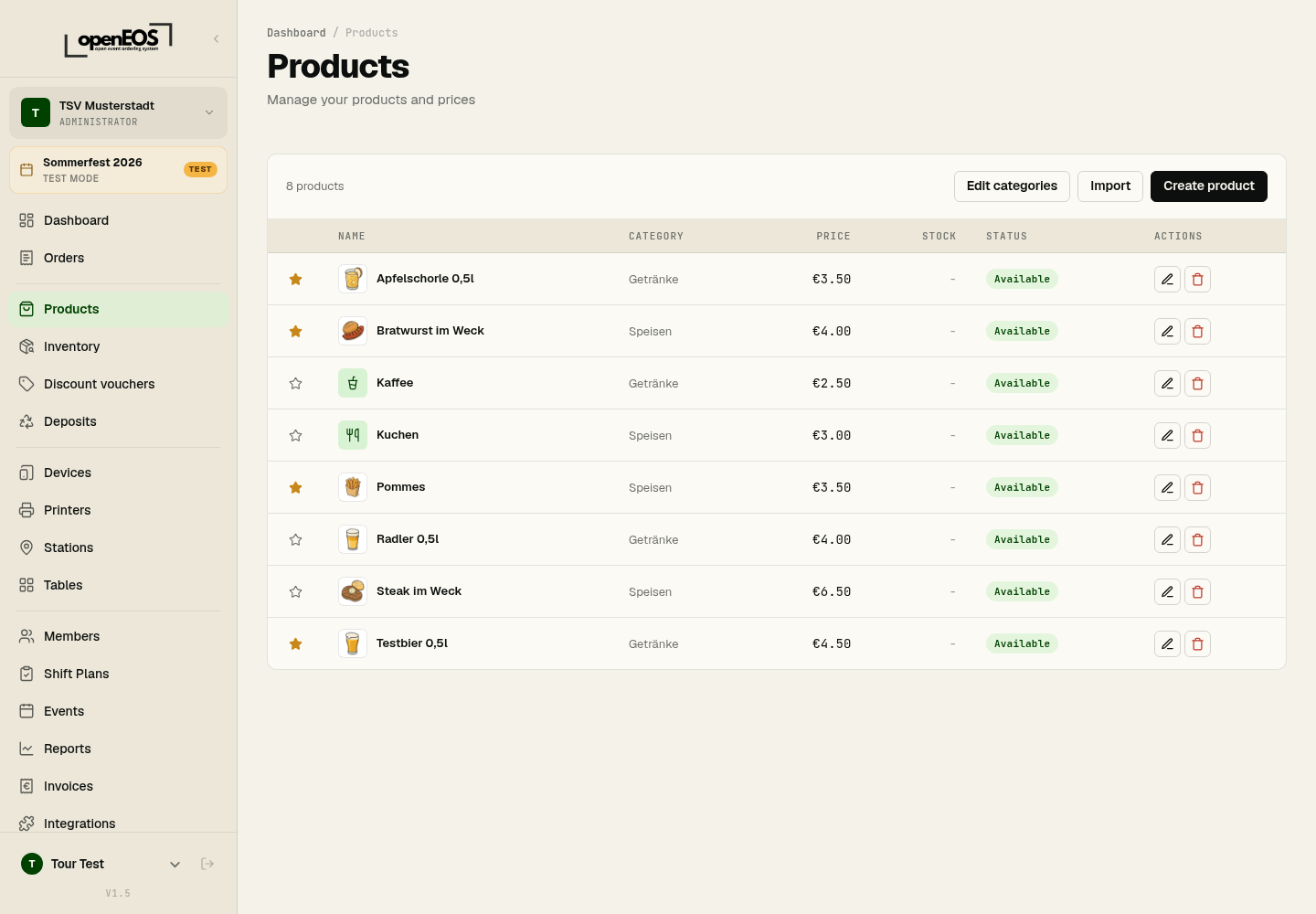
- Click Create product.
- Fill in the fields:
- Name (required)
- Category — assign the product to a category
- Description — optional additional text (e.g. "Freshly tapped")
- Price (required)
- Optional: choose a product icon or upload an image (see Icons and images).
- Optional: switch on Favorite so the product sits at the top of the till (see Favorites).
- Optional: use + Add group to add option groups (e.g. "Side dish" with selectable options).
- Click Create.
Product list
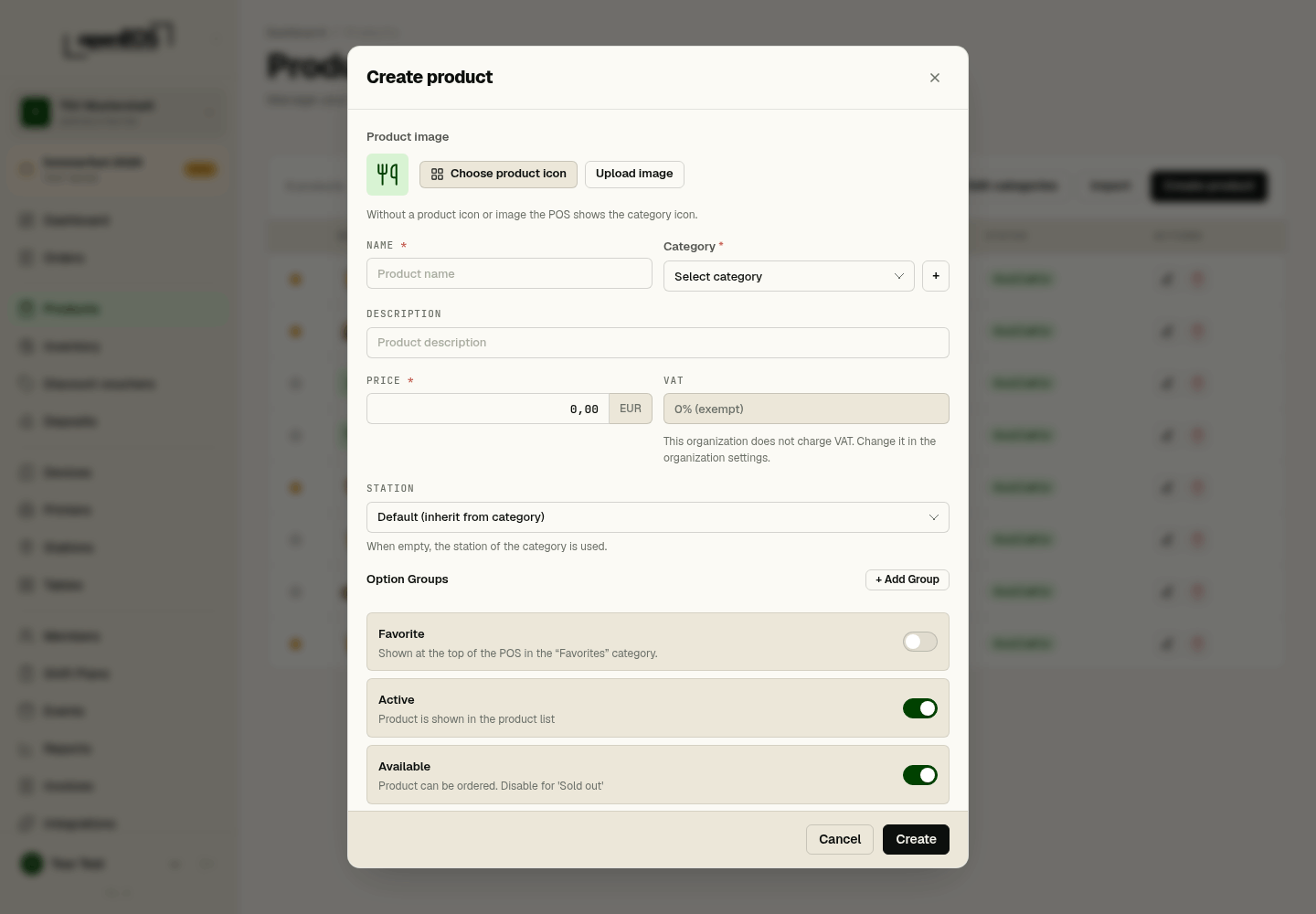
The table shows the Name, Category, Price, Stock, and Status (e.g. Available) for each product. Use the action buttons at the end of each row to edit or delete a product. The star in the row makes a product a favorite or removes it again.
Favorites
Mark what sells most as a Favorite — with the star in the product list or the Favorite switch in the product dialog. At the top of the till a Favorites category then appears with exactly these products; it is selected when the till is first opened. That way beer, bratwurst and fries are one tap away, whatever category they are in.
Without any favorites the category is not shown and the till starts with the first category. Favorites apply to all tills of the event.
Icons and images
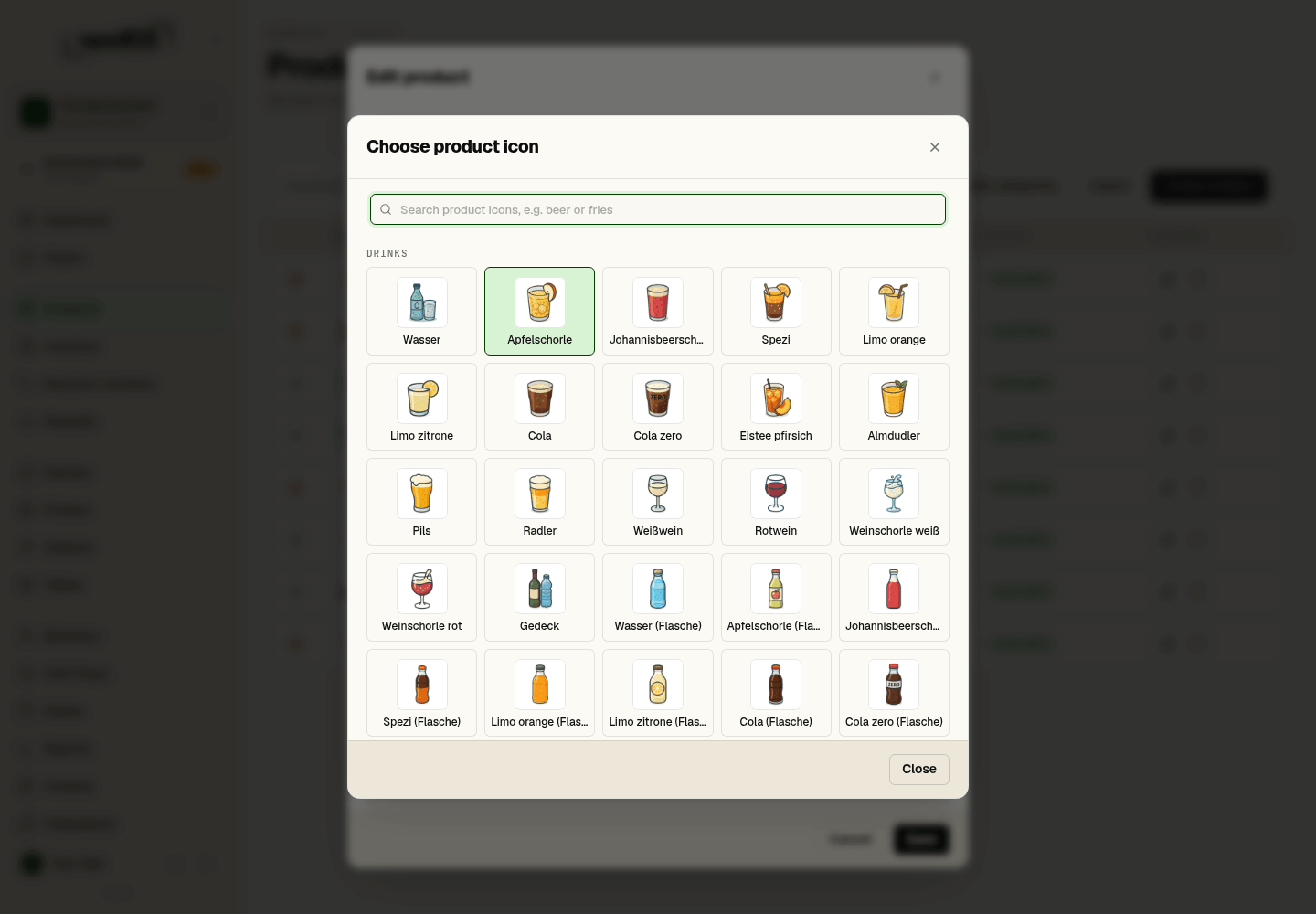
At the till every product has a small picture on its tile. There are two ways to set it:
- Choose product icon — opens the picker with coloured product pictures: beer, shandy, wine and spritzers, soft drinks as glass or bottle, sausage, steak, burgers, fries, crêpes and more. Without a search they are grouped into drinks and food; the search finds them by English or German terms, for example "beer", "bratwurst" or "Pommes".
- Upload image — a photo of the product. It fills the icon area.
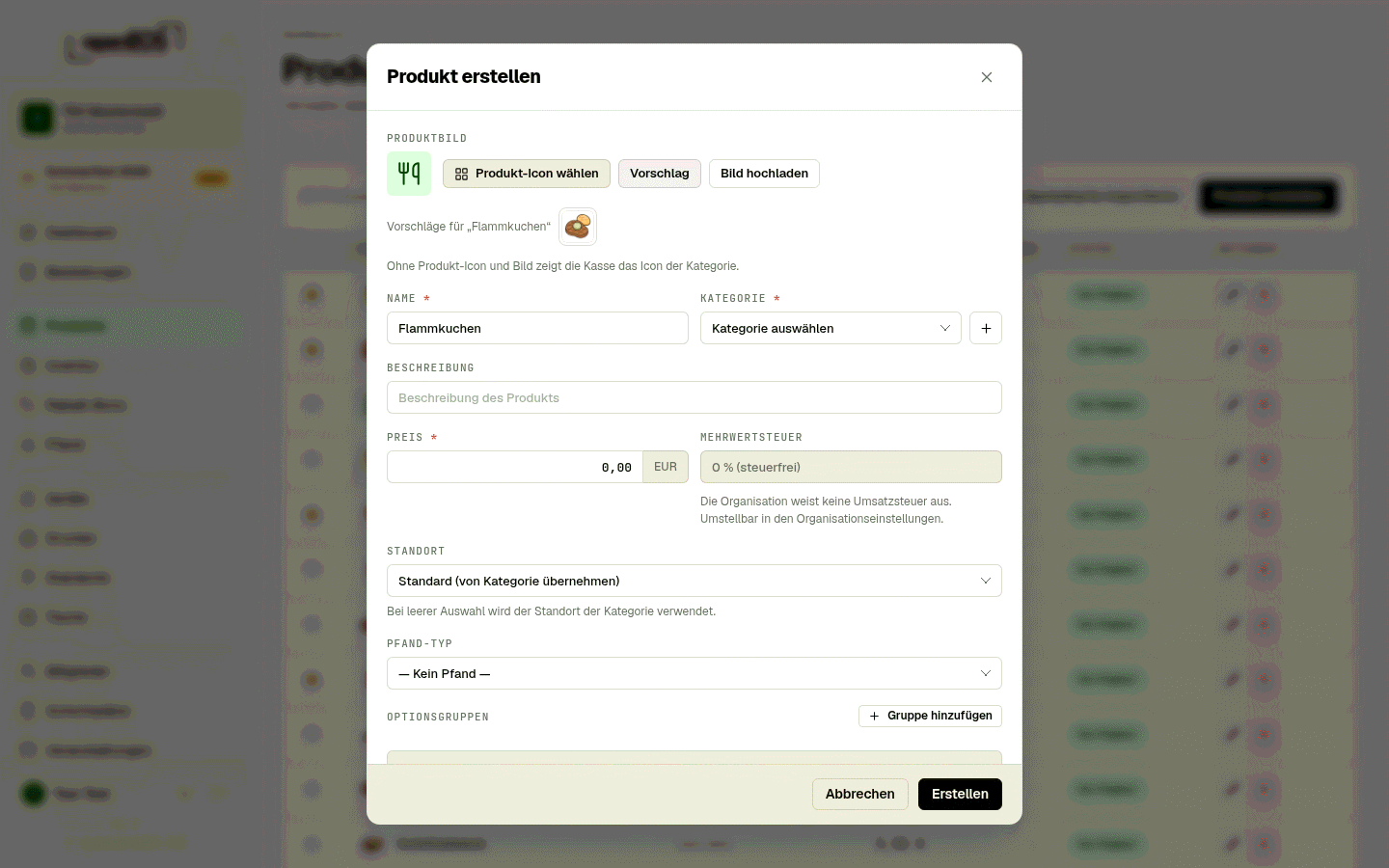
If the assistant is switched on, there is also a Suggest button next to the icon field: enter the name first, then OpenEOS shows up to three matching product icons to tap.
If a product has both, the till shows the product icon. If it has neither, it uses the icon of its category — for coffee or cake, say, which have no product picture of their own. Products that still carry an icon from the previous version are shown with the matching product picture (beer as a glass of lager, bratwurst as a grilled sausage in a roll) or, if there is none, with the category icon.
For the second line of the tile the till uses the first line of the description — write "0.5 l" or "in a bun" there, for example.
Stock tracking
The Stock column shows how many units of a product the system considers still available. This lets till staff spot early when a product is running low.
How stock tracking works:
- Sales reduce stock. When a product is sold at the till, its stock automatically decreases by the quantity sold.
- No stock set (
-). If the column shows a dash, no stock is tracked for that product — it stays sellable regardless of quantity. This makes sense for items without a meaningful unit count (e.g. freshly prepared food). - Status. The status (e.g. Available) indicates whether a product is currently offered at the till.
Connection with stocktaking
You record the opening stock and any later corrections in the Inventory module:
- Record opening stock – create a stocktake before the event and enter the available quantities per product. This value then appears in the Stock column.
- During operations – while sales are being made, OpenEOS subtracts the sold quantities from the stock. You always see the calculated remaining stock.
- Closing stocktake – after the event, record the stock that is actually left. The difference between expected and counted stock helps you understand consumption and shrinkage.
Track stock primarily for products where the unit count matters (e.g. crates of drinks, deposit cups). For freely prepared food you can skip stock tracking by simply not recording an opening stock.
Importing products
Instead of creating each product individually, you can use Import to load multiple products at once via a CSV file. In the import dialogue you map the columns of your file to the OpenEOS fields (name, price, category, etc.) and see a preview before the import is executed.
Importing from a menu
If you already have your menu – as a poster, flyer or PDF – you do not have to type it in. With Import from menu, OpenEOS reads it and turns it into a suggestion for categories and products that you review and then create in one step. This feature is part of the assistant; an admin switches it on under Settings → Organization → Assistant. While it is off, a note with a link to the settings appears in its place.
The suggestion is a draft. Price, tax rate or category can be off – check the table before creating. Nothing is created that you have not selected.
Step by step
-
On the products page, click Import from menu. The import applies to the active event.
-
Choose where the menu comes from:
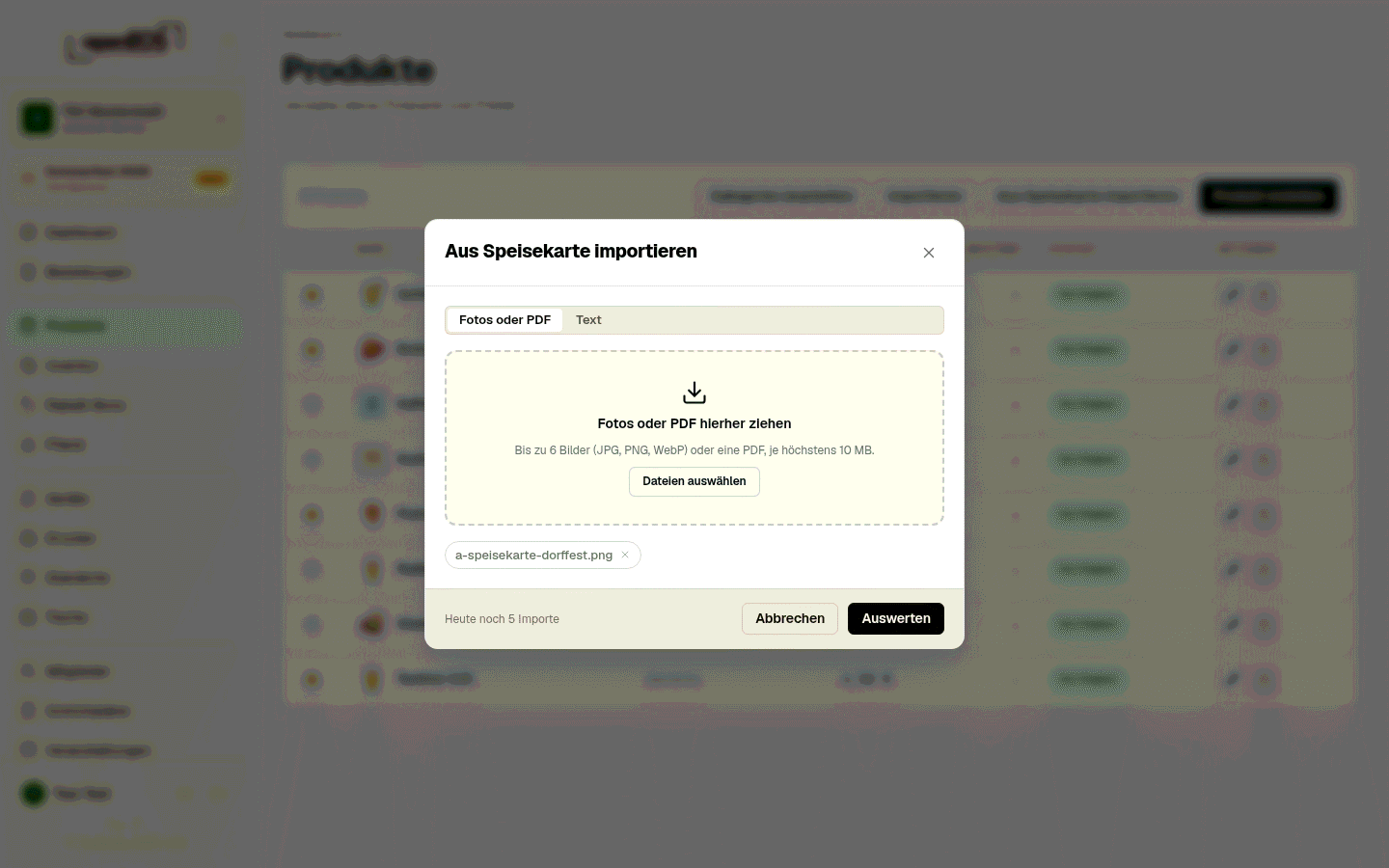
- Photos or PDF – drag the files into the field or choose them. Up to 6 images (JPG, PNG, WebP) or one PDF, at most 10 MB each. A PDF can only be uploaded on its own, not mixed with images.
- Text – paste the menu as text, just as it is written, for example from a spreadsheet or an e-mail. Headings become categories, "0.3 l 3.00 / 0.5 l 4.00" becomes variants, "plus 2 € deposit" becomes the deposit hint.
-
Click Read menu. Reading usually takes less than a minute; you can leave the dialog open or discard with Cancel.
-
Review the preview – a table with all recognized products:
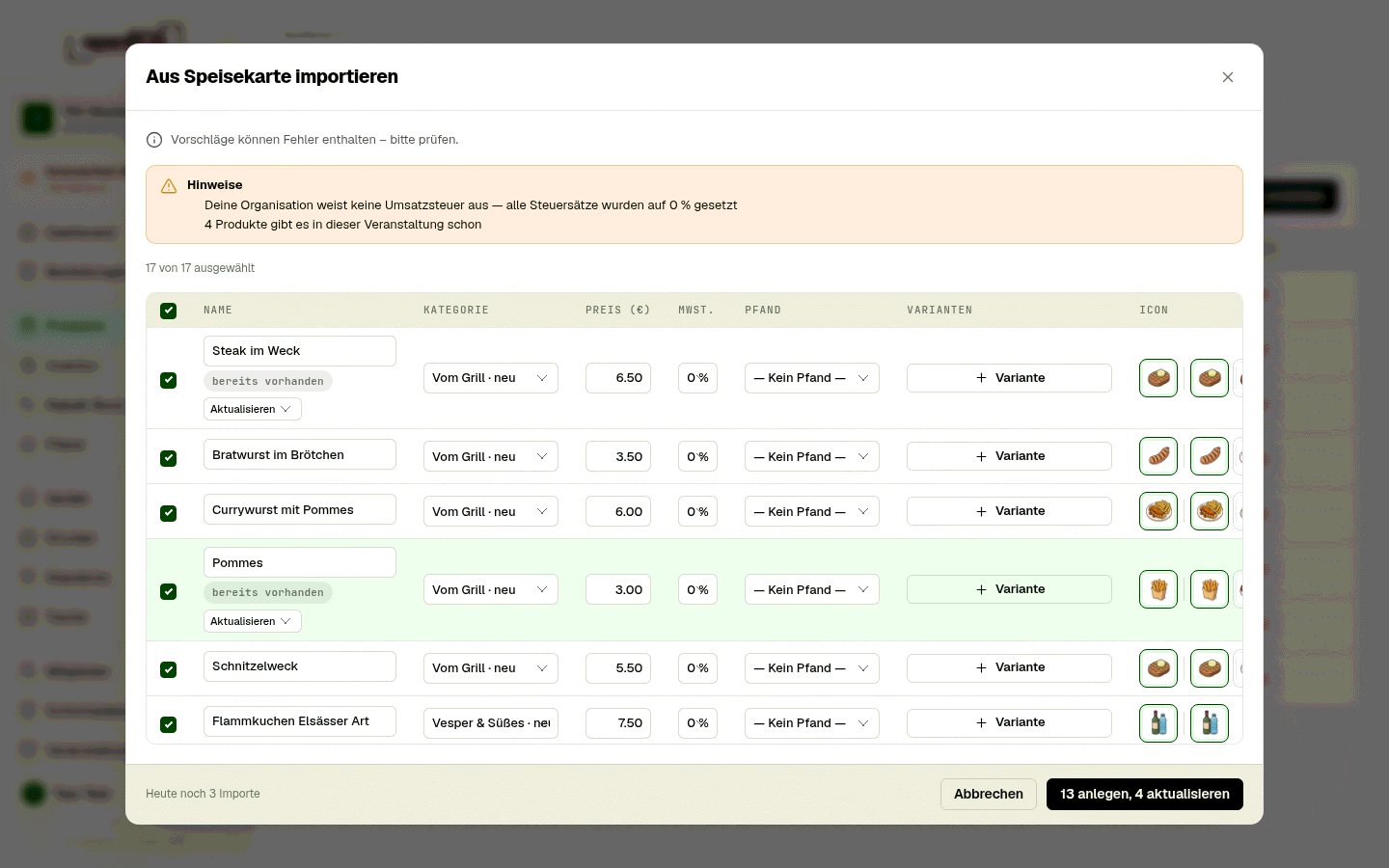
- Include – the checkbox at the start of the row. Only checked rows are created; the column header selects or deselects all.
- Name – editable. A coloured dot next to it means the assistant was unsure about price or category (Unsure about price or category or Guessed – please check carefully); hover over it.
- Category – the selection shows the event's existing categories and the newly recognized ones marked new. New categories are created along with the products.
- Price (€) and VAT – as recognized on the menu, with a suggested tax rate. If your organization has No VAT set, all rows are at 0 %.
- Deposit – if the menu mentioned a deposit ("+ 2 € deposit"), the row shows On the menu: 2.00 € deposit. Choose the matching deposit type; if there is none yet, create it first.
- Variants – sizes like 0.3 l and 0.5 l are combined into one product with variants, each with a name and a surcharge on the base price. You can add or remove variants; they end up as an option group on the product.
- Icon – a product icon is usually suggested already; next to it are up to three alternatives to tap. Choose product icon opens the full picker.
- already exists – if the event already has a product with this name, the row gets this badge and a choice of Update (writes price, tax rate, variants and icon into the existing product) or Create new.
If a row is missing something essential (Name missing, Price unreadable, Category missing), it is shown in red on the row; fill it in or uncheck the row. Above the table, Notes lists things the assistant noticed, such as an unreadable price.
-
Click Create N products (or Create …, update …). The products then appear in the list and a message sums up how many products and categories were created.
Stock, favorites and descriptions are edited afterwards in the product as usual. The footer of the dialog shows how many imports you have left today – five per day by default, see Daily quota.
Tips for good photos
- One page per photo, straight from above, without fingers or reflections. Six individual photos are better than one photo of the whole board.
- Sharp and bright – when in doubt, look at the photo: if you can read the prices, so can the assistant.
- Get close – the menu should fill the picture, not the table around it.
- Handwriting and chalkboards work if they are legible; with scrawly writing, check the marked rows more carefully.
- If you have the menu as a file (Word, Excel, PDF), use the PDF or copy the text – that is more accurate than a photo of the screen.