Members & Permissions
Under Members you manage your organization's team. You invite new members and define which areas each member is allowed to access.
Roles
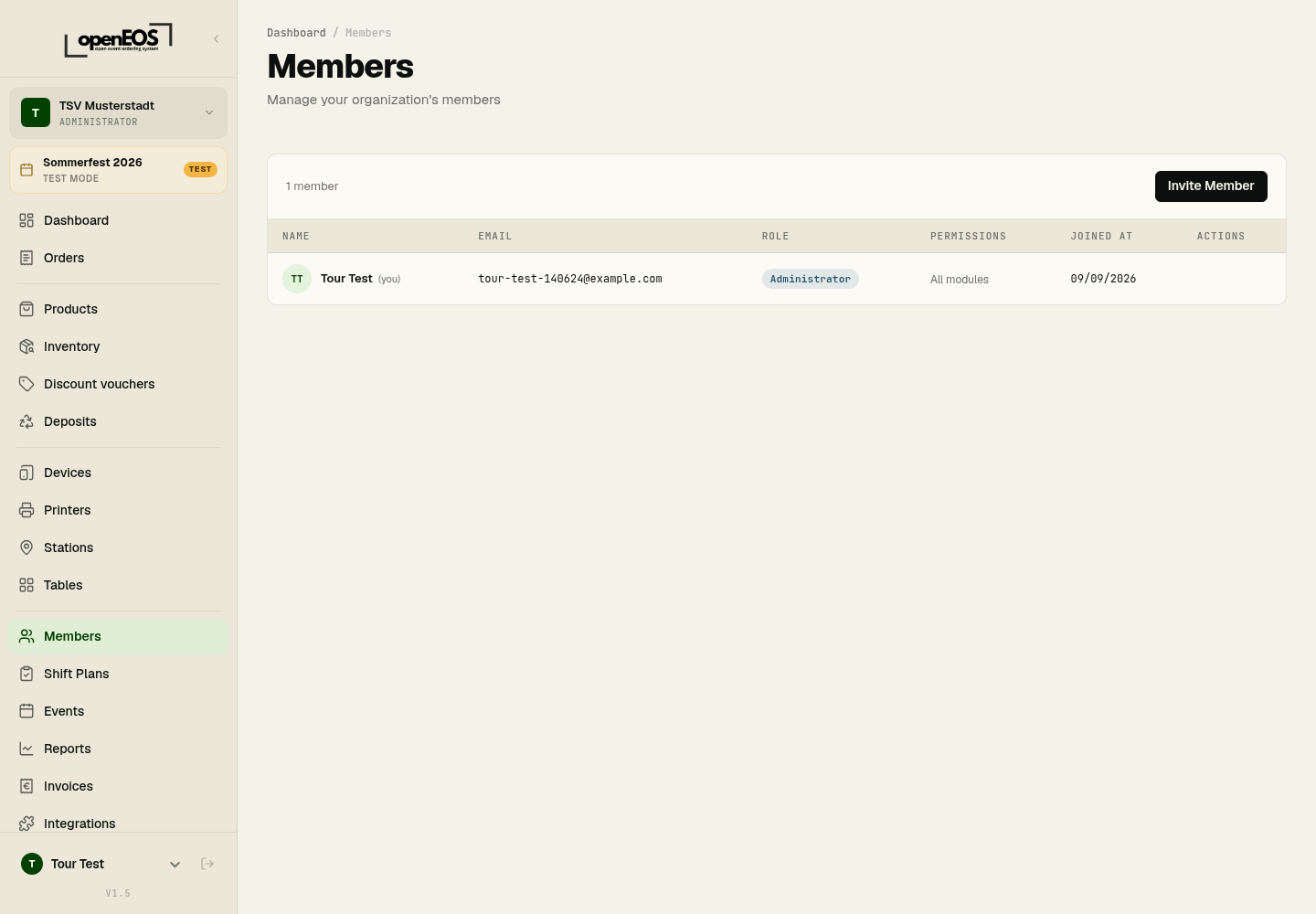
OpenEOS has two roles:
- Administrator – automatically has access to all modules and can fully manage the organization.
- Member – gets individual modules unlocked selectively (see Permissions).
The overview shows each person's name, email address, role, enabled permissions, and join date.
Inviting a Member
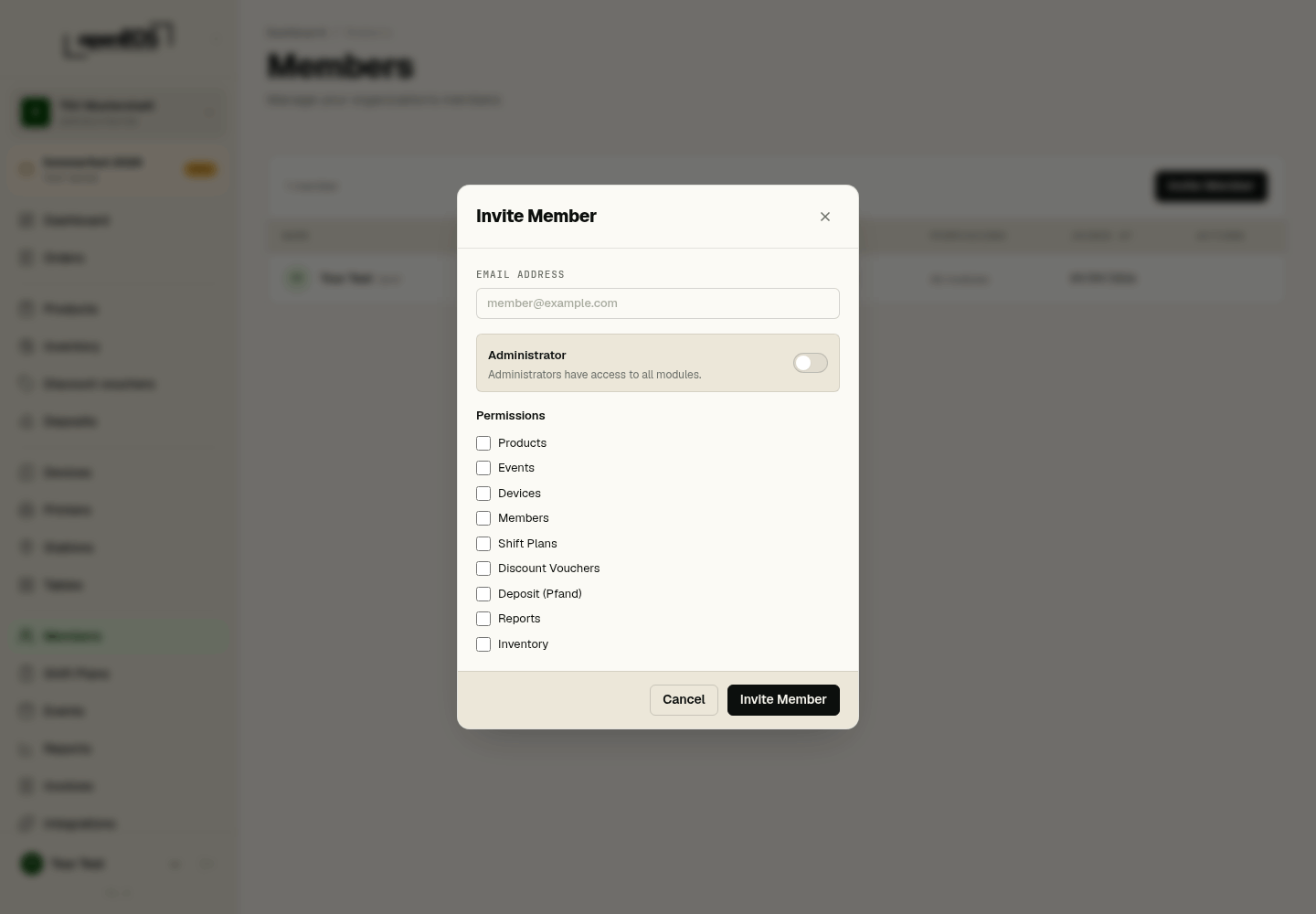
- Click Invite Member.
- Enter the person's email address.
- Use the Administrator toggle to decide whether the person gets full access.
- If the person is not an administrator, select the modules to enable under Permissions.
- Click Invite Member.
Seats and Maximum
In the hosted service an organization has room for at most 10 members. Active members and pending invitations count – a sent invitation takes its seat until it is accepted, withdrawn or expired. Next to Invite Member you see the current state, e.g. "7 of 10 seats used (incl. invitations)".
When all seats are taken the button is greyed out. Remove a member or withdraw an invitation. Helpers who sign up via Shift Plans are not members and do not count.
Contact support – we raise the maximum for your organization. The same applies to the number of organizations per account (see Organization).
Module-Based Permissions
The following modules can be enabled individually for members:
- Products (this includes Stations)
- Events (this includes Tables)
- Devices (this includes Printers)
- Members
- Shift Plans
- Discount Vouchers
- Deposit (Pfand)
- Reports
- Inventory
Only enabled modules appear in that member's navigation. Every member sees Orders and the Dashboard; Invoices and Integrations are reserved for administrators. For example, you can give a shift supervisor access to Shift Plans only, without access to reports or devices.
Only grant the permissions someone actually needs. Administrator full access should be reserved for a small number of responsible individuals.