Printers
The Printers section is where you connect your receipt printers to OpenEOS and decide how and where things get printed. The section has three tabs: Printers, Templates and Print Workflows.
OpenEOS prints on common ESC/POS receipt printers — Epson, Star, Bixolon and most no-name devices with 58 or 80 mm paper — via USB or over the network. The link between the printer and OpenEOS is the printer agent. This page walks you through once: install the agent, connect it, adopt printers, test print, assign.
The printer agent
The printer agent is a small program that runs on a Windows or Linux PC (a Raspberry Pi works too) on the same network as your printers. It
- finds attached USB printers, printers set up in Windows (Windows printers) and network printers on its own and reports them to OpenEOS,
- keeps the connection to OpenEOS and prints the tickets OpenEOS sends it,
- remembers accepted jobs and prints them after a restart.
Which printer is used for what is not configured on the PC but here in the web app. Once connected, there is nothing left to configure on the PC. One agent serves any number of printers; if printers sit on separate networks — say the kitchen and the bar each with their own Wi-Fi — run one agent at each location.
The agent is the same for app.openeos.de and for a self-hosted installation. Without further options it connects to app.openeos.de. If you host OpenEOS yourself, pass --server-url https://<your-host>/api once at start — see Printer agent for your own installation.
Download and install the agent
All files are on the download page; the Download for Windows and Download for Linux buttons in the Printers tab lead there.
| File | For |
|---|---|
openeos-printer-agent-windows-x64.exe | Windows 10/11, 64-bit |
openeos-printer-agent-linux-x64 | Linux PC, 64-bit |
openeos-printer-agent-linux-arm64 | Raspberry Pi 4/5 with 64-bit Raspberry Pi OS |
Windows
- Put the EXE somewhere permanent, e.g.
C:\Program Files\OpenEOS\. - Double-click it. A window opens and shows the six-digit code — enter it in OpenEOS (next section). Then close the window with
Ctrl+C. - So that the agent starts with Windows from now on, install it as a service: open a Command Prompt as Administrator (right-click → Run as administrator) and run:
The OpenEOS Printer Agent service now runs in the background and keeps the pairing from step 2. If you have not entered the code yet, the service shows it incd "C:\Program Files\OpenEOS"openeos-printer-agent-windows-x64.exe install-service
%ProgramData%\OpenEOS Printer Agent\logs\agent.logand onhttp://localhost:8080.
On Windows, USB printers are connected through the Windows printer setup: set up the printer in Windows — with the vendor driver or the built-in Generic / Text Only driver on the USB port — and print a Windows test page. The agent then reports it as a Windows printer.
Linux and Raspberry Pi
install.sh from the source checkout sets the agent up as a service (auto-start, USB permissions), either with the ready-made binary or from source:
git clone https://github.com/OpenEOS-Project/openeos-printer-agent.git
cd openeos-printer-agent
sudo ./install.sh --binary ./openeos-printer-agent-linux-x64   # or -linux-arm64 on the Pi
# without --binary: install from source (Python ≥ 3.11)
Afterwards read the code from the log (sudo journalctl -u openeos-printer -f) or in the browser at http://<ip-of-the-pc>:8080. For a quick try the binary alone is enough — chmod +x, start it, done.
Raspberry Pi: on a Pi 4 or 5 with a 64-bit OS use the arm64 file. On a Pi 3 or a 32-bit OS install from source (install.sh without --binary).
The code
On its first start the agent registers with OpenEOS and shows a six-digit code — in the window, in the log and on its status page http://localhost:8080. It then waits until you have entered the code.
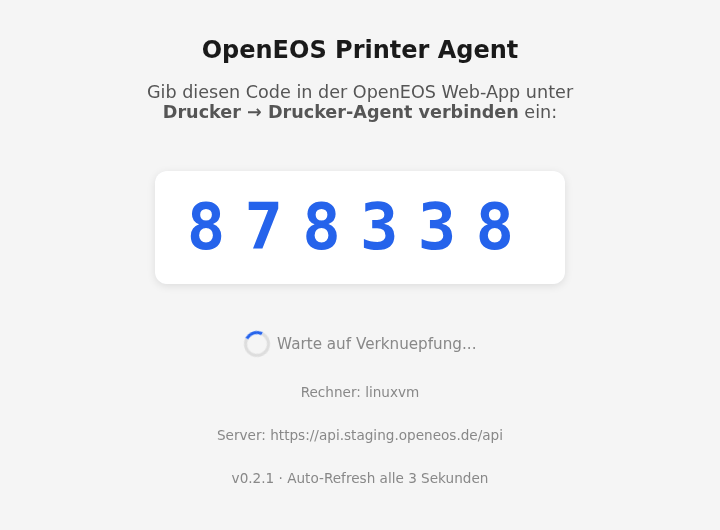
Nobody has to sign in on the printer PC. The agent shows a number, you enter it in your account — that ties the agent to your organization, and nobody else can print through it.
Connect the agent in the web app
As long as no agent is connected, the Printers tab shows the steps and the download links.
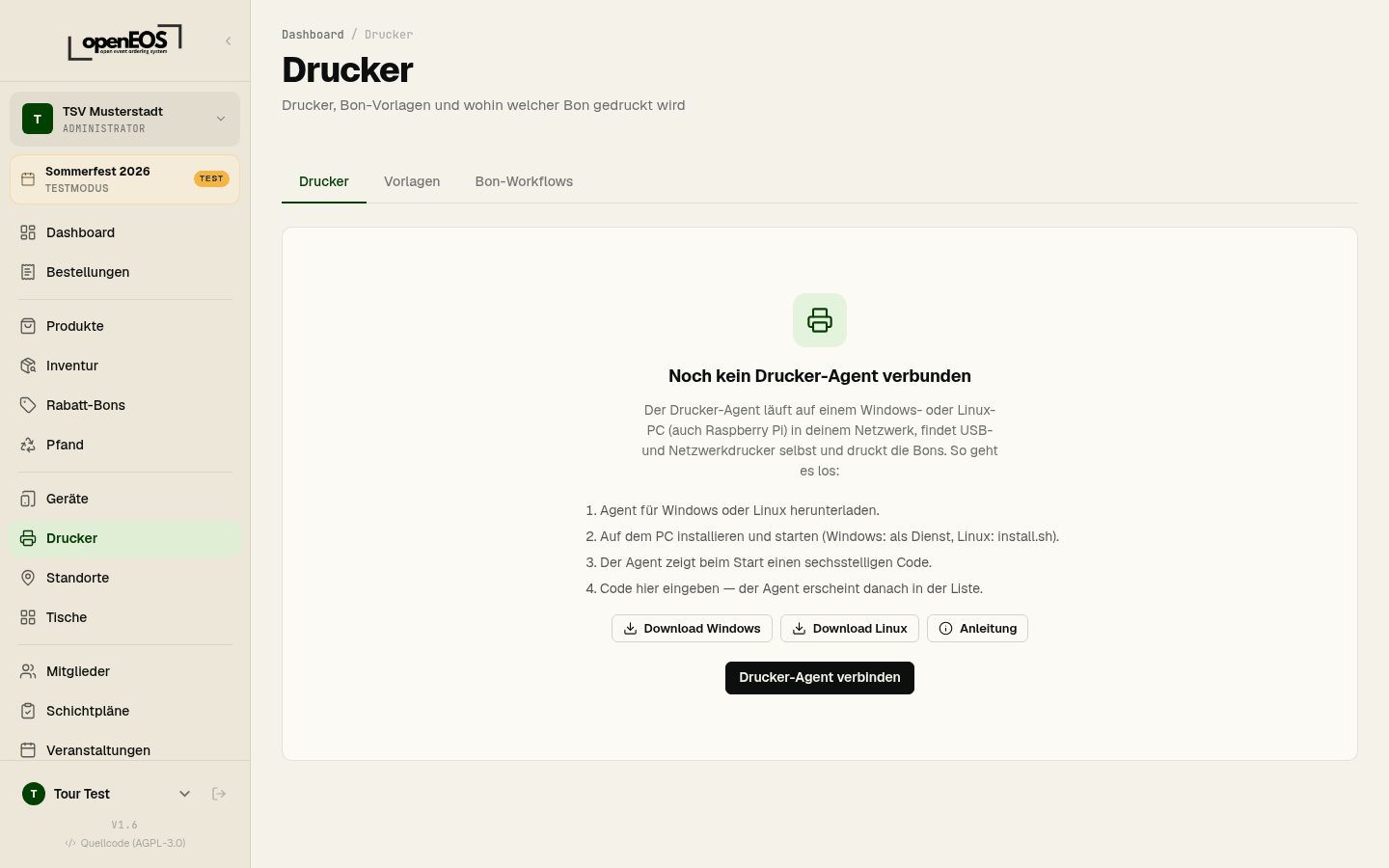
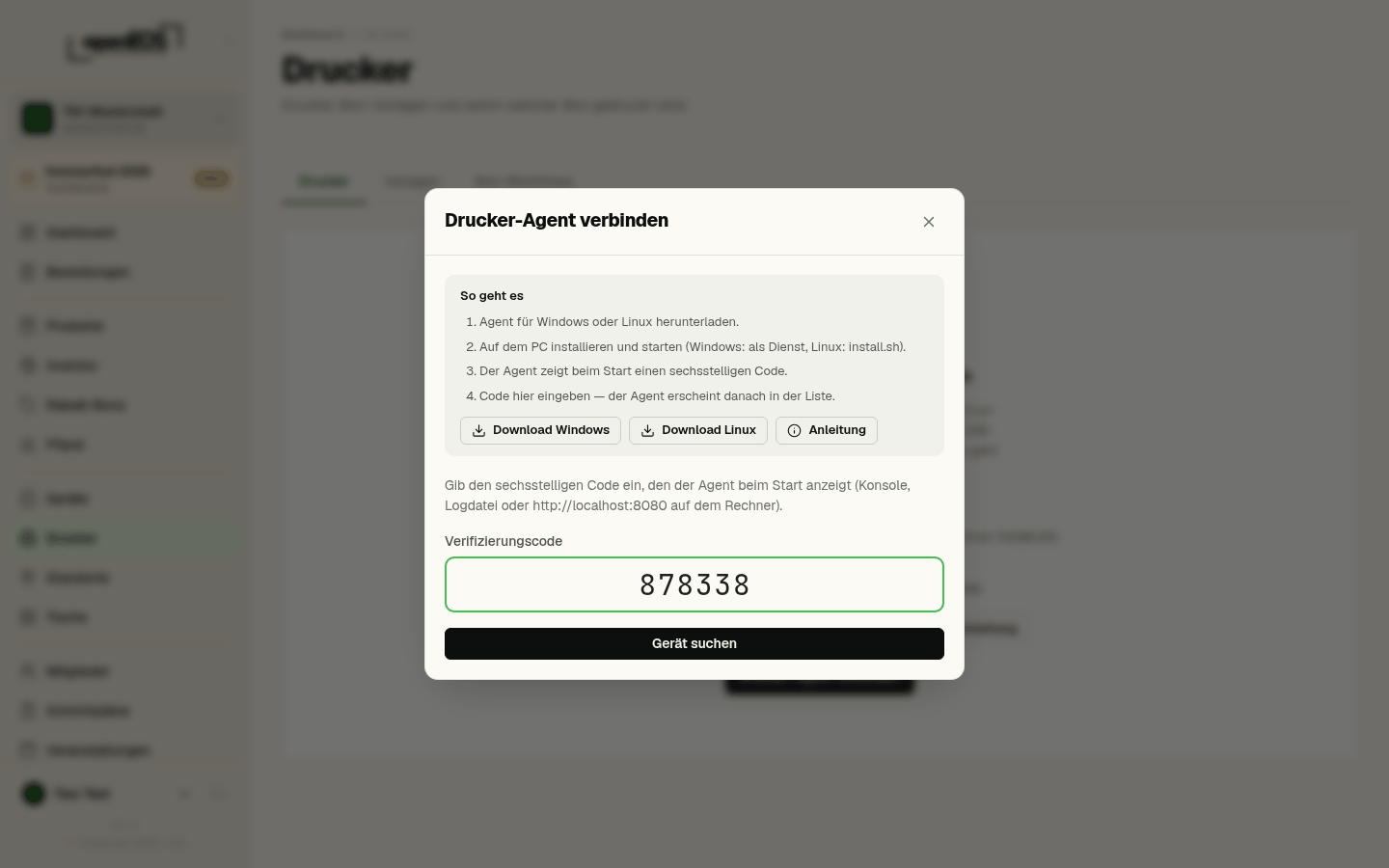
- Click Connect printer agent.
- Enter the code and click Find device.
- Give it a name, such as "Printer PC kitchen", and click Link.
A few seconds later the agent appears in the list with its host name, operating system and version, reports Online and immediately scans for printers. It needs no code on the next start.
Discovered printers
Under each agent, the Printers tab shows a Discovered printers area: everything the agent has found, with its name, connection, Found via (USB, mDNS, network scan, Windows spooler) and last seen. The agent finds
- USB printers attached to the agent's PC and switched on (Linux);
- Windows printers: every printer set up in Windows. Virtual printers such as "Microsoft Print to PDF" are left out;
- network printers that announce themselves via mDNS/Bonjour.
Only ESC/POS receipt printers work. The list therefore hides office printers (laser, inkjet) and devices that do not answer the agent's model query, showing just a hint such as "2 more devices hidden". Show all discovered devices reveals those entries too, marked Not a receipt printer – you can still adopt them, at your own risk.
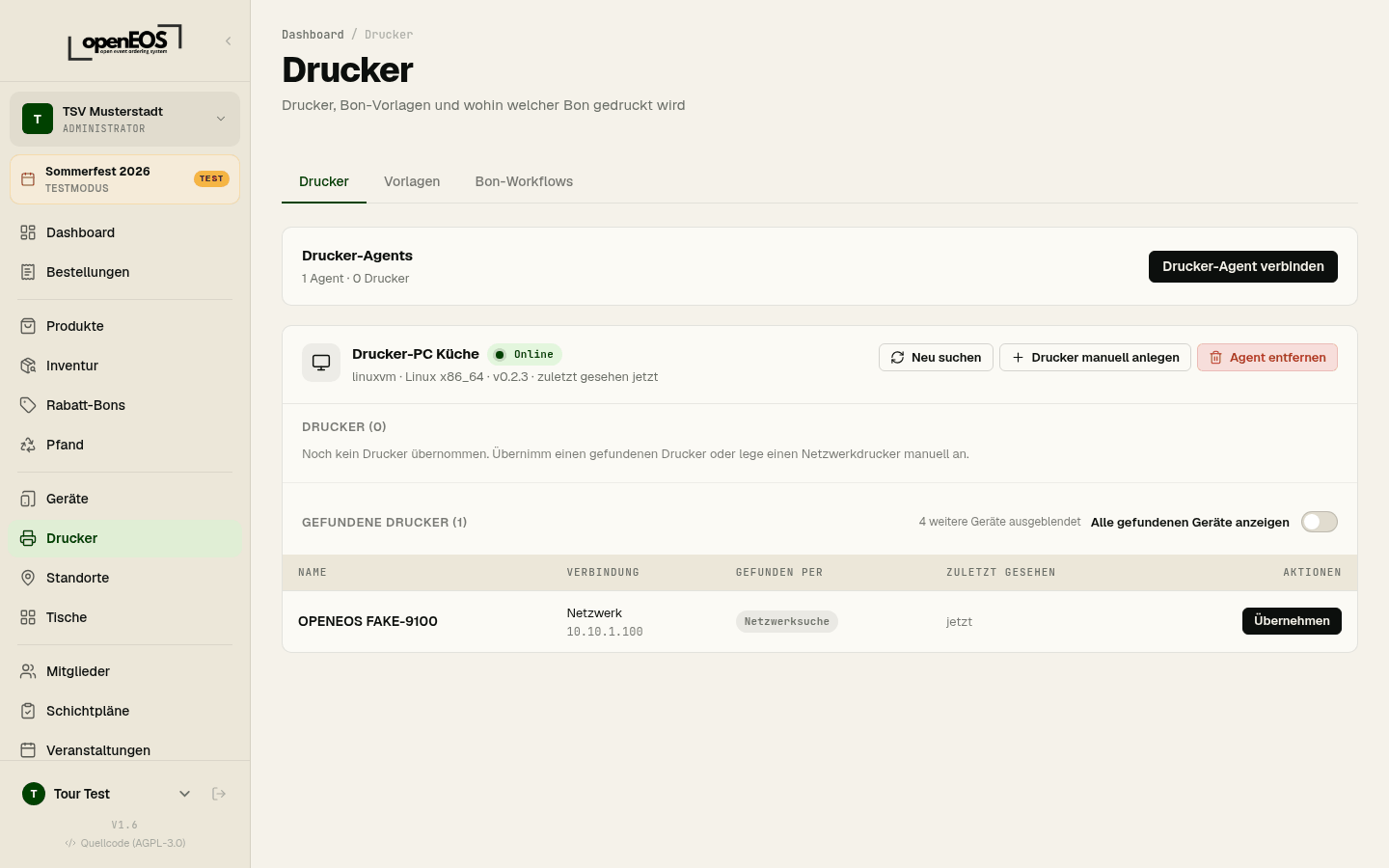
The agent scans at start and every five minutes after that. Search again triggers a scan right away. If you also switch on Also scan the network (port 9100), the agent additionally probes every address on its network on port 9100 — that finds network printers that do not announce themselves, but takes a few seconds longer.
If you move a USB printer to another port or a network printer gets a new IP address, the agent usually recognises it anyway — by serial number or MAC address.
Adopt a printer
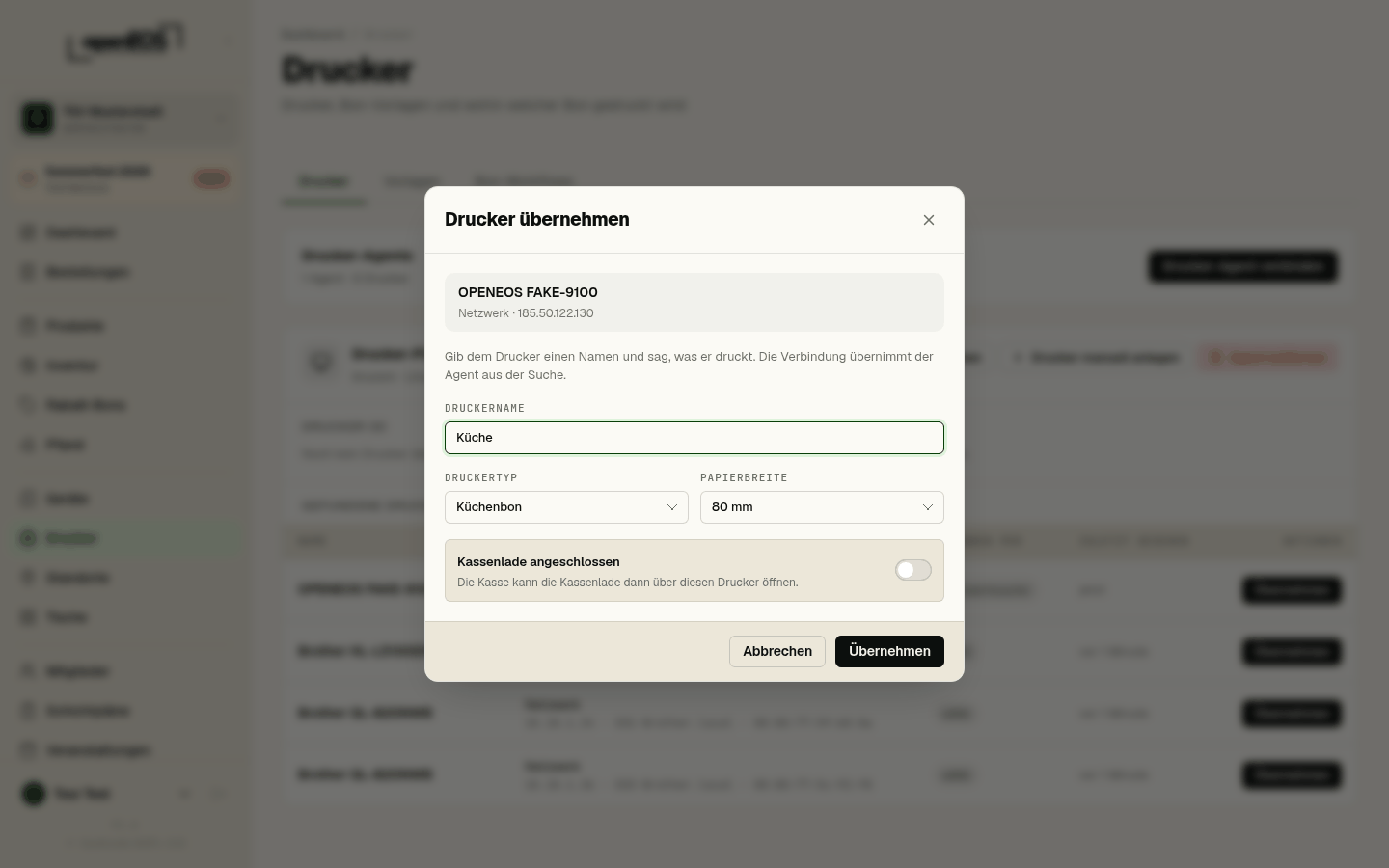
A discovered printer cannot be used yet. Only Adopt turns it into one of your organization's printers:
- Click Adopt next to the discovered printer.
- Give it a name, e.g. "Kitchen" or "Bar".
- Choose the printer type: Receipt for tickets handed to guests, Kitchen ticket for production tickets to the kitchen, grill or bar, Label for label printers.
- Choose the paper width (58 or 80 mm) and switch on Cash drawer connected if a cash drawer is attached to the printer. Only then can the till open the drawer on cash payments through this printer.
- Confirm with Adopt. The printer appears in its agent's list.
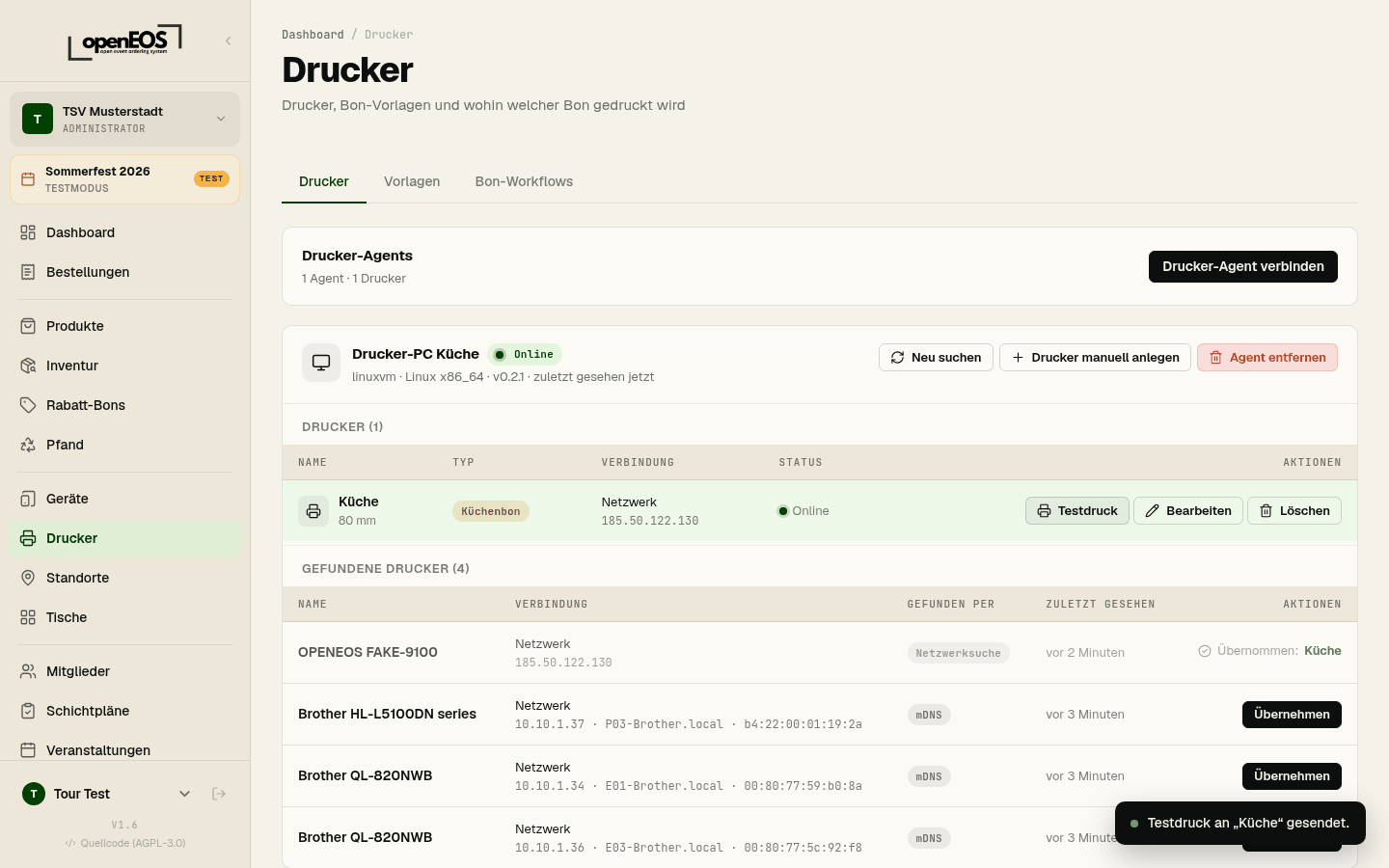
Printers that are already adopted are marked Adopted in the Discovered printers area.
Add a printer manually
If the agent does not find a network printer — because it sits on another network, say — add it with Add printer manually. Enter the IP address and port (almost always 9100), plus name, type, paper width and cash drawer as when adopting. The printer must be reachable from the agent's PC.
Only network printers can be added manually. USB and Windows printers can only be found by the agent; see If something does not work.
Test print
Next to every adopted printer there is Test print. OpenEOS sends a short ticket through the agent to the printer; if it comes out, the whole chain of agent, connection and printer works. Do a test print after adopting and once more before the event if printers have moved.
Edit and remove printers
Edit lets you change name, type, paper width and cash drawer at any time; for network printers also IP address and port. The Printer active switch takes a printer out of service temporarily: deactivated printers receive no tickets and can no longer be assigned.
Remove deletes the printer and clears its assignments in stations, print workflows and tills; if the agent still finds it, you can adopt it again later.
Assign printers
An adopted printer only prints once something is directed at it. Three places decide that:
- Stations — each station (kitchen, grill, pickup) has its printer; the kitchen tickets of the products that belong to that station via category or product end up there.
- Print workflows — in the Print Workflows tab you decide which ticket types are printed automatically and can set a fixed printer per ticket type.
- Till device — in the Printer tab of a device you choose the till's default printer (for receipts and as the fallback when no station matches) and the printer the cash drawer is attached to.
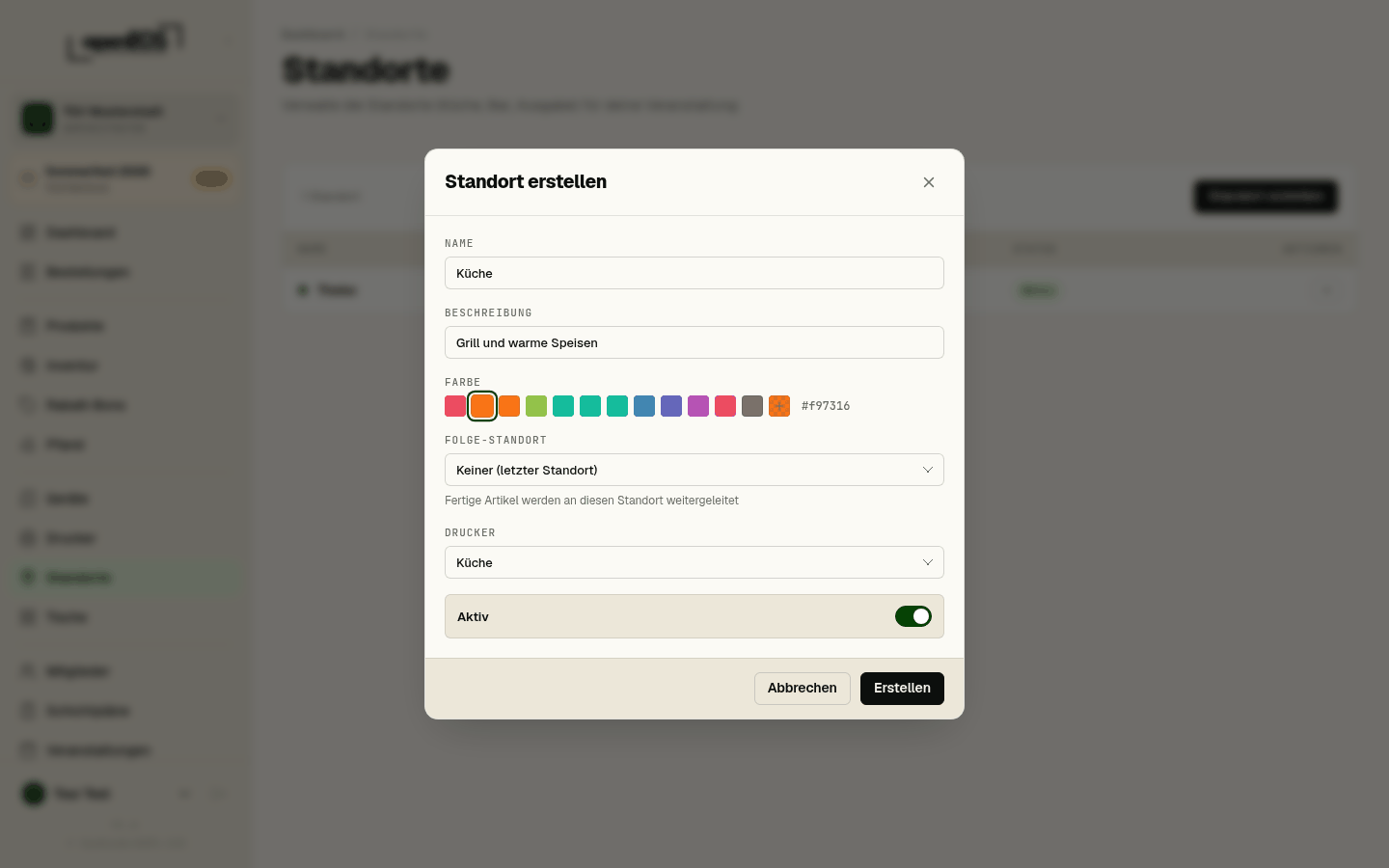
A station's printer is only used when the kitchen ticket in the Print Workflows tab runs in the mode 1 ticket per location (or 1 ticket per product). In the mode 1 ticket per order the whole ticket goes to the till's default printer or the override printer — the station printers stay silent.
All of these pick lists only contain adopted printers. Discovered but not yet adopted printers do not show up there.
Status and online
Agents and printers show in the list whether they are Online, along with last seen. The agent checks in every 30 seconds; if it stops, it counts as Offline — the PC is off, the agent is not running, or it has no internet connection. A printer counts as offline when the agent cannot reach it: switched off, unplugged or not on the network.
Jobs the agent has already accepted are not lost on a restart; it prints them as soon as the printer is back. If a Printers without agent area shows up, those printers are no longer attached to a connected agent — because the agent PC was replaced, say. Remove them and adopt the printers under the new agent.
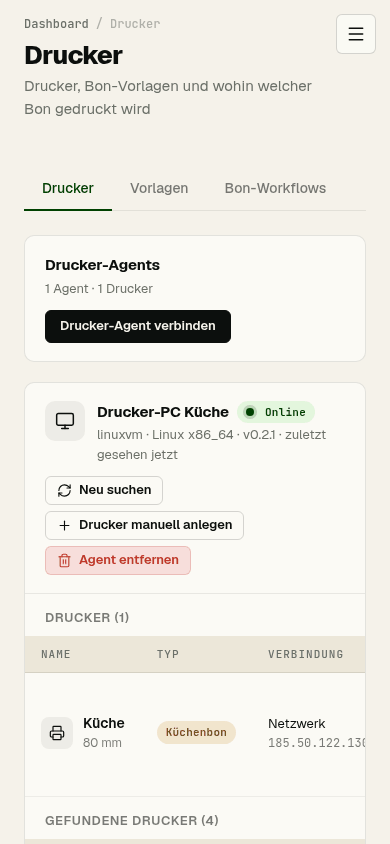
The page works on a phone as well — handy for a quick check on the day that everything is online:
Remove an agent
Remove agent deletes the agent with all its printers from your organization; assignments in stations, print workflows, tills and products are cleared. The agent on the PC can no longer print afterwards.
If the same PC is to print again later, there is nothing to delete or restart: the running agent notices that it was removed and shows a new code on its own — in the log and on http://localhost:8080. Enter it as above. An agent blocked in the device list does not pair again: it waits, checks every 60 seconds whether it has been unblocked, and then reconnects.
Templates
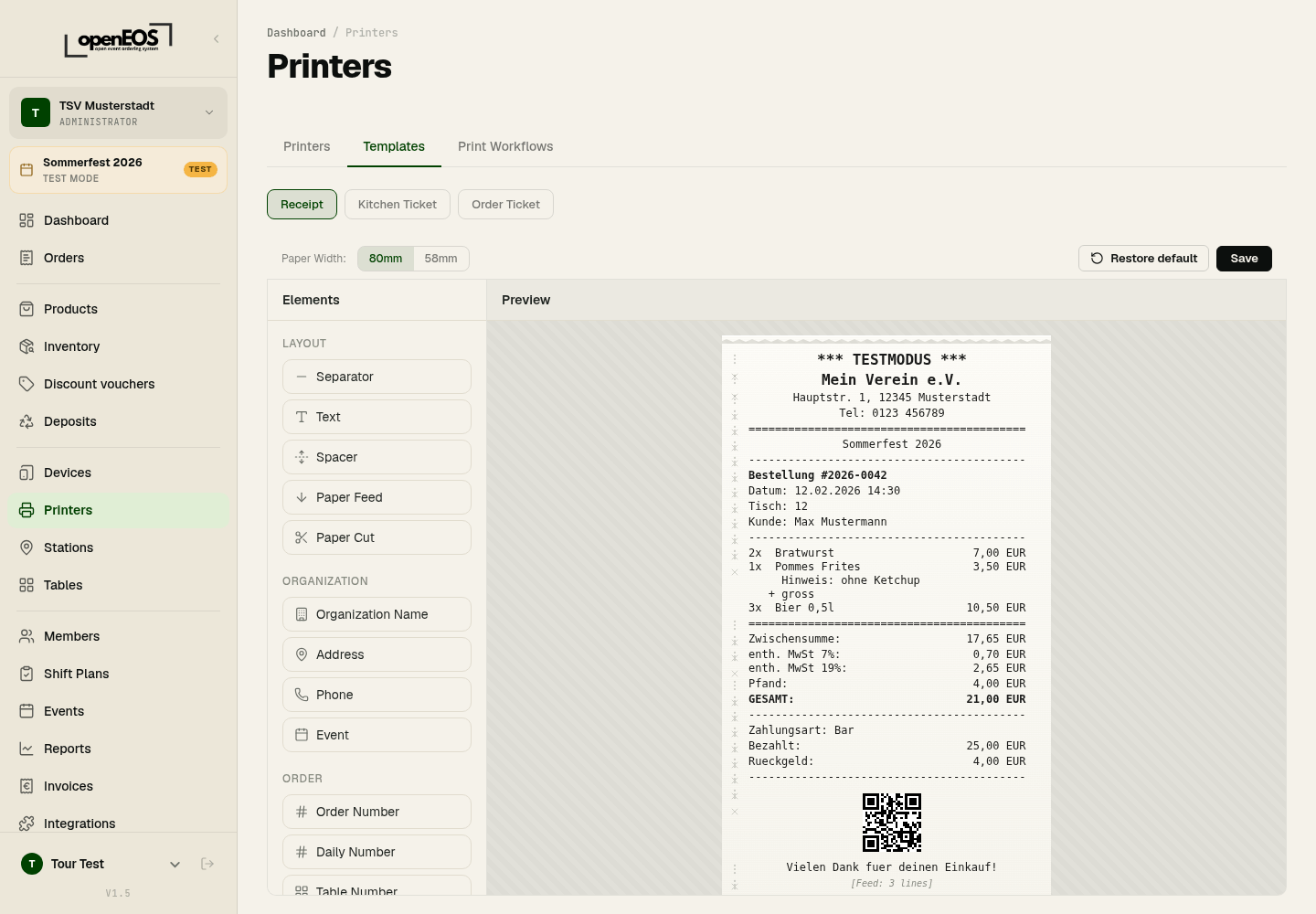
The Templates tab lets you define how receipts look — for example a kitchen receipt, drinks receipt, or till receipt. Templates determine the content and layout of the printout (header, line items, notes, footer).
Print Workflows
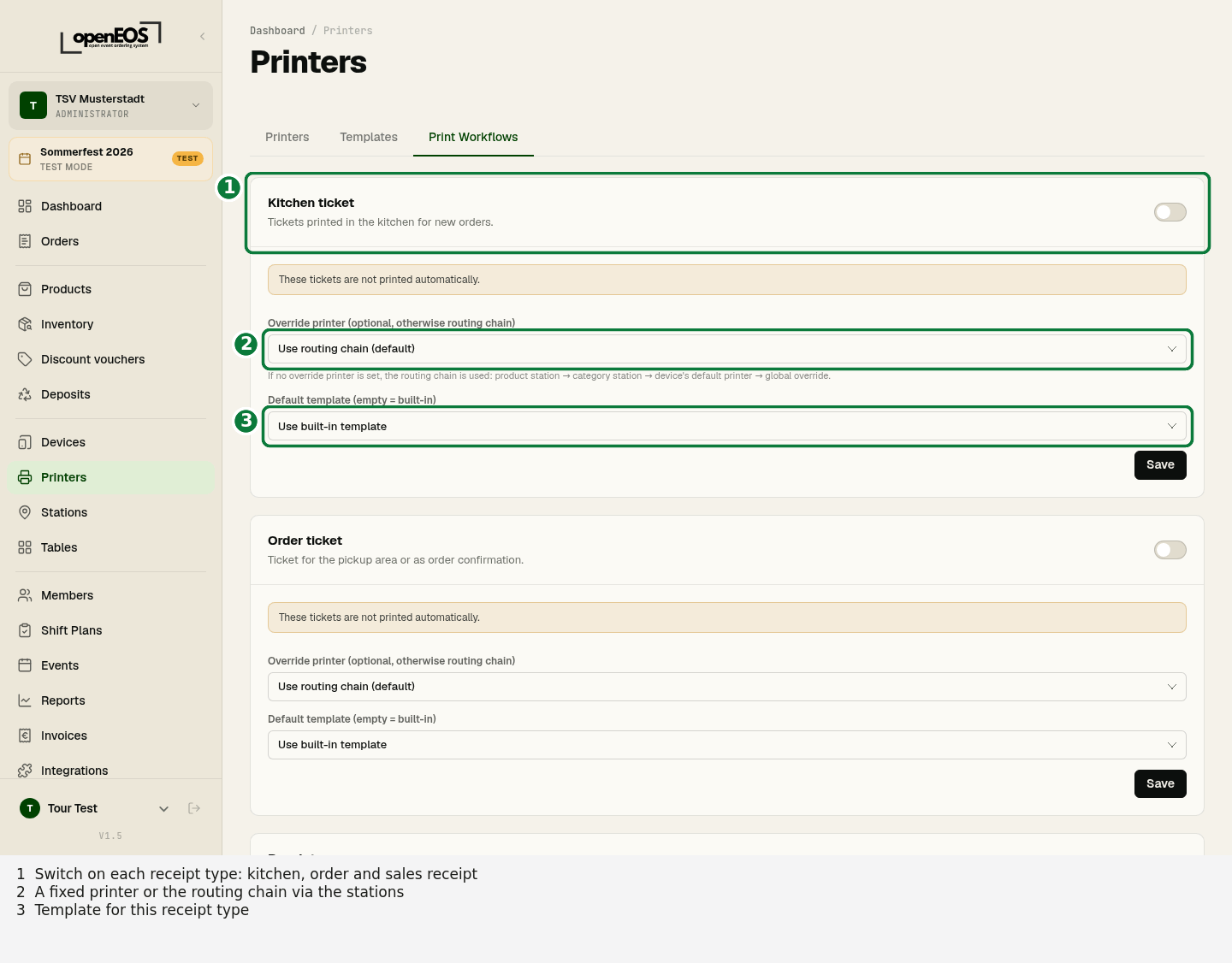
The Print Workflows tab defines which tickets are printed automatically. There are three ticket types, each with its own switch:
- Kitchen ticket – for the kitchen when new orders arrive. Choose the mode: 1 ticket per order, 1 ticket per product with barcode or 1 ticket per location (required for station printers to be used).
- Order ticket – for the pickup area or as order confirmation.
- Receipt – after payment. As trigger choose On payment, On order completion or Manual.
While a ticket type is switched off, it reads These tickets are not printed automatically. For each ticket type you also choose:
- Override printer – a fixed printer. Without one, the routing chain applies: the printer of the product's station, otherwise of the category's station, otherwise the device's default printer.
- Default template – one of your own templates or the built-in one.
Save applies the settings of a ticket type.
If something does not work
The agent does not appear after entering the code, or stays offline. Is the agent still running? When started by hand, closing the window stops it — set it up as a service. Check that the PC can reach the internet. You can always find the code on the agent's status page http://localhost:8080 or in its log (Windows: %ProgramData%\OpenEOS Printer Agent\logs\agent.log, Linux: journalctl -u openeos-printer).
A USB printer is not found or does not print on Linux. Usually permissions are missing. install.sh installs udev rules for the common vendors; without a matching rule the agent sees the printer as an ID at best but cannot print. lsusb shows whether the printer is there at all and which ID it has. If its vendor is missing from the rule, add it — how is described under USB permissions on Linux.
A USB printer is not found on Windows. On Windows the agent uses the printers set up in Windows. Set up the printer in Windows — with the vendor driver or with the built-in Generic / Text Only driver on the USB port —, print a Windows test page, then click Search again.
A network printer is not found. Discovery needs mDNS (UDP 5353) and, with the network scan switched on, port 9100 into the local network; a firewall on the agent PC can block both. Then add the printer manually with its IP address. The printer must have raw printing on port 9100 enabled (often called "RAW" or "JetDirect").
The printer is on another network. Automatic discovery only sees the agent PC's network. Add the printer manually by IP address if it is reachable from there; otherwise put a second agent on the other network.
The agent PC is on a VPN. If the VPN owns the default route, the agent scans the wrong network. Set discovery.subnet in its configuration to the printers' network (see Configuration) or add the printers manually by IP.
The test print does not come out. Is the printer online in the list? Paper in, cover closed? For Windows printers, did you adopt the right entry (the same printer can appear once as a Windows printer and once as a USB printer — take the Windows printer)? If that does not help, the agent's log shows the error.